
Log in from a computer using the app
Use the device you prefer. It can be a computer, laptop, or a mobile device.
On this page:
Pairing devices
If you want to use a computer instead of your mobile device with the app, you can "pair devices". Pairing devices creates a link between the device you want to use, and your mobile device with the app.
For example, you can use a:
- Laptop + your mobile device with the app
- iPad + your mobile device with the app
- Shared computer (like at a library) + your mobile device with the app
- Work computer + your personal mobile device with the app
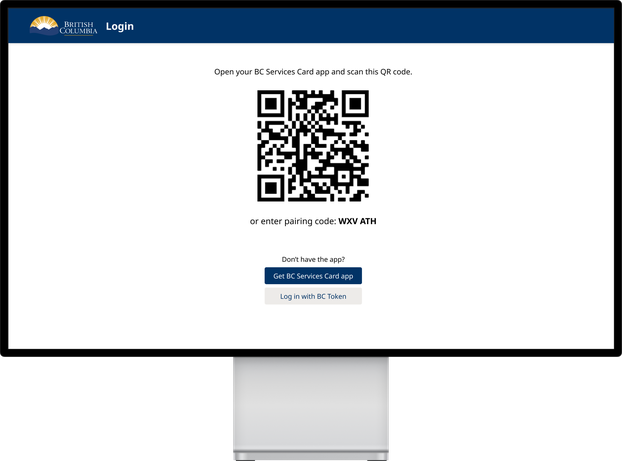
To pair devices, you can either scan a QR code or enter a "pairing code" in your mobile app.
After you pair devices, you can choose to skip the pairing step and have a notification sent to your mobile device the next time you log in.
Step-by-step guide:
Log in using a QR code
When you use a computer, you can use the mobile app to just complete the login step. One way to do this is by scanning a QR code with the app. The following is a step-by-step guide to do this.
Step 1: Go to the website you want to log in to
Using your preferred device, open a browser, such as Safari or Chrome.
Go to a website that accepts BC Services Card Login.
Choose log in with BC Services Card.
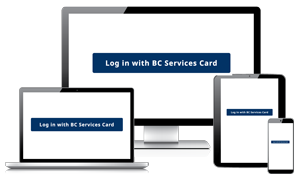
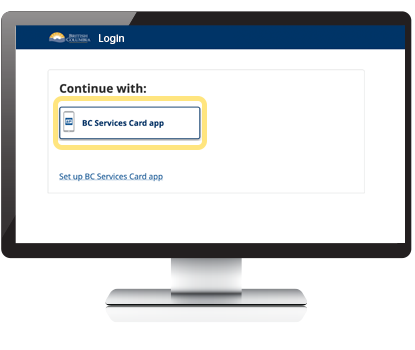
Step 2: Choose to use the app
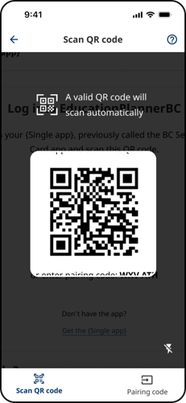
Step 3: Scan the QR code
Open the BC Services Card app, tap the QR code and confirm you want to log in.
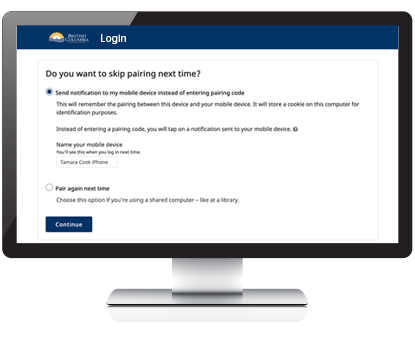
Step 4: Choose if you want to skip pairing next time
If you're going to use the same computer again, for faster log in:
- Choose to skip pairing next time
- Give your device a name
- This name will show as an option next time you log in
- When you select it, you'll receive a notification on that device
You'll only see this option if you've enabled notifications in the BC Services Card app, which allows us to send a notification to your mobile device.
Step 5: Login complete
On the website, you may be asked for more information that is only saved by the website. What you do after you log in, is not saved in the app.
Log in using a pairing code
When you use a computer, you can use the mobile app to just complete the login step. One way to do this is by entering a pairing code in the app. The following is a step-by-step guide to do this.
Step 1: Go to the website you want to log in to
Using your preferred device, open a browser, such as Safari or Chrome.
Go to a website that accepts BC Services Card Login.
Choose log in with BC Services Card.
Step 2: Choose to use the app
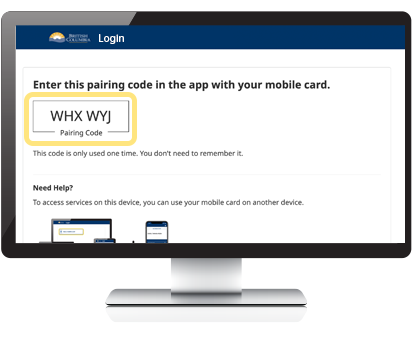
Step 3: Get a pairing code
You'll use it once and do not need to remember it.
Step 4: Enter the pairing code
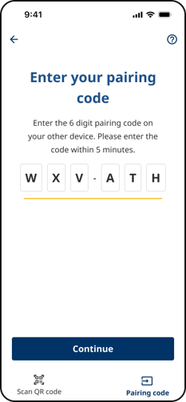
Open the app on your mobile device.
- Tap the QR scanner
- Scan the QR or tap pairing code
- Enter the pairing code and confirm you want to log in.
Step 5: Choose if you want to skip pairing next time
If you're going to use the same computer again for faster log in:
- Choose to skip pairing next time
- Give your device a name
- This name will show as an option next time you log in
- When you select it, you'll receive a notification on that device
You'll only see this option if you've enabled notifications in the BC Services Card app which allows us to send a notification to your mobile device.
Step 6: Login complete
On the website, you may be asked for more information that is only saved by the website. What you do after you log in, is not saved in the app.
Log in using a notification sent to your device
This option only works when you have:
- Notifications enabled in the BC Services Card app to receive a notification
- Previously logged in by entering a pairing code, and chose to use push notifications next time (see option 1 above)
Step 1: Go to the website you want to log in to
Using your preferred device, open a browser, such as Safari or Chrome.
Go to a website that accepts BC Services Card Login.
Choose log in with the BC Services Card.
Step 2: Choose your mobile device that you saved last time you logged in
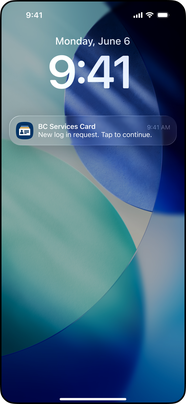
You'll receive a notification on your mobile device.
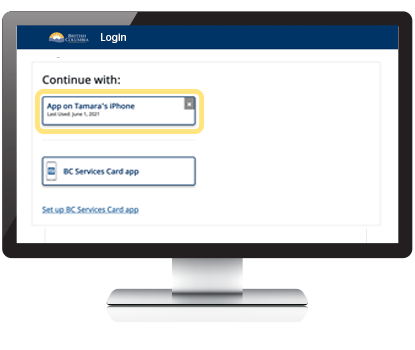
Step 3: Confirm login in the app
Tap the notification on your mobile device, or open the BC Services Card app. Follow the instructions in the app to continue.
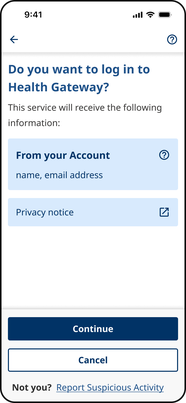
Step 4: Login complete
On the website, you may be asked for more information that is only saved by the website. What you do after you log in, is not saved in the app.
Need more help?
You can find more help in the user guides. If you're not able to find what you're looking for and want to talk to someone, call the Service BC Help Desk.
Service BC Help Desk
Open Monday to Friday (except statutory holidays)