
Using your digital credentials
How to use your digital credentials
A digital credential is a secure way to prove information about yourself, such as your name, age or qualifications.
When you use your digital credential, the service will tell you what information it needs (for example, your name). You can review the request before deciding whether to share the information.
The steps below explain the general process. The exact steps may vary. Follow the instructions provided by the participating service for more information.
1. To use your digital credentials:
1. Get the BC Services Card app
You will add your digital credentials to the BC Services Card app.
2. Add your digital credentials
Learn more about adding your digital credentials.
2. Go to a service that accepts digital credentials
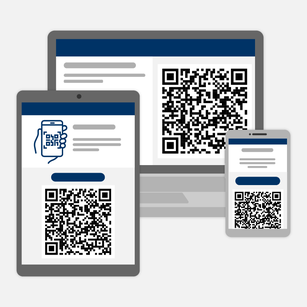
1. Find the service QR code
A service will have a QR code for you to scan on their website or app.
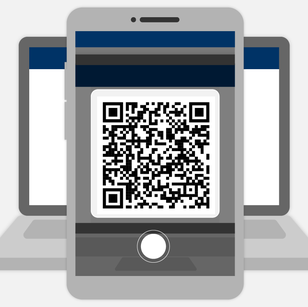
2. Scan the QR code with the BC Services Card app
Tap the Scan button in your BC Services Card app and aim it at the QR code on the service website.
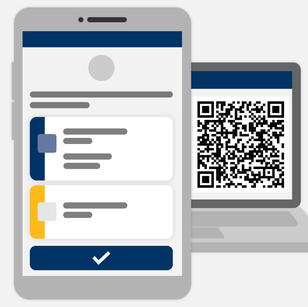
3. Review proof request and share
Review the information the service is asking from you and tap Share.
If you're accessing a service on the same smartphone or tablet as your BC Services Card app, tap the “Open with BC Services Card app” or “Open in wallet” button or link.
Troubleshooting
Missing credentials
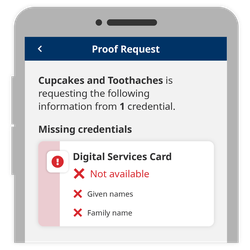
This means you don't have the digital credentials that are being requested by the service in your wallet. The BC Services Card app lists what credentials you're missing.
You will need to add the missing credentials into your BC Services Card app to continue. The service you're trying to access should mention what credentials you'll need and how to get them.
Revoked credentials
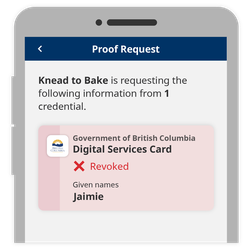
This means the digital credentials requested by the service are revoked. A revoked credential is similar to an expired driver's license. It may have been revoked because your information was changed, expired or no longer viable. Please check with the organization that offered you your digital credential.
Often a replacement credential will be offered at the same time. Check your notifications for any credential offers.
- Open your BC Services Card app.
- Find a notification that says “New credential offer” and tap View.
- Review the information in your credential and tap Accept.
Organizations may also provide you with the option to revoke your digital credentials for various reasons. Visit or contact the organization that gave you the digital credential for more information.
Choose a different version of a credential to share
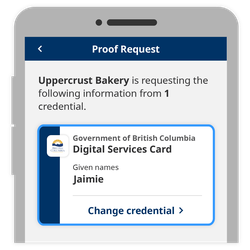
If you have multiple credentials of the same type, you can choose which one to share. For example, if you own multiple businesses and have different business license digital credentials, you can choose which one to share with the service.
- When you receive a request to share information in the BC Services Card app, tap Change credential.
- Tap the digital credential you want to share.
- Review the information you're sharing and tap Share.
Sharing your information takes longer than usual
Using the BC Services Card app and sharing your information to access a service can take some time depending on your internet connection.
When it takes longer than 30 seconds sharing your information to access a service, fully close the app and open it up again.
- Learn how to close an app on an iPhone or iPad
- Learn how to close an app on an Android phone or tablet
If repeated attempts to send your information do not work, the issue may be due to certain Wi-Fi networks blocking communication to the BC Services Card app:
- Turn off your Wi-Fi on your smartphone or tablet
- Turn on your mobile data instead
- Try to access the service again
- You can turn Wi-Fi back on afterwards.
Need more help?
You can find more help in the user guides. If you're not able to find what you're looking for and want to talk to someone, call the Service BC Help Desk.
Service BC Help Desk
Open Monday to Friday (except statutory holidays)